Customize Your Papelog Profile (part 2)
In part 1 we have discuss how to customize your profile and cover image.
If you haven't seen the part 1, please check it out here.
In this part, we'll discuss how to manage and customize your profile tab.
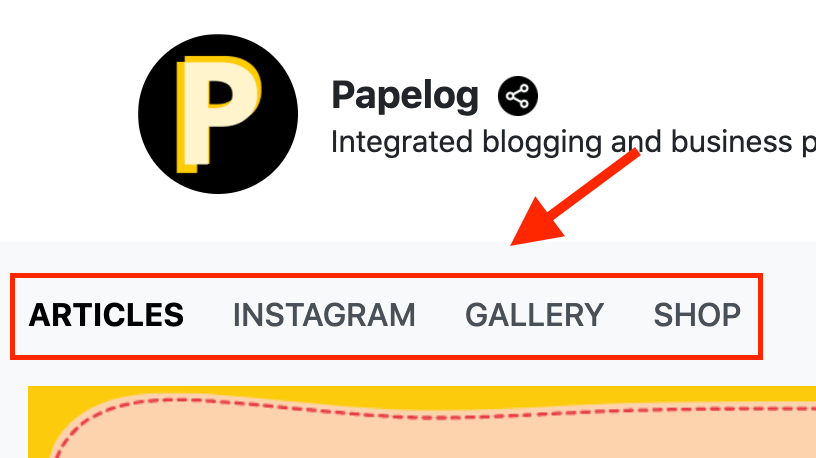
If you go to your profile or anyone, you should see the profile tab
By default, you'll get 3 tabs:
- ARTICLES: to store all of your articles
- GALLERY: to store your images/pictures
- SHOP: to sell your products
The good thing is you can customize or even add more tab to your profile easily!
If you click the CUSTOMIZE button at your profile, you should see that the profile tab is changing and there are some buttons
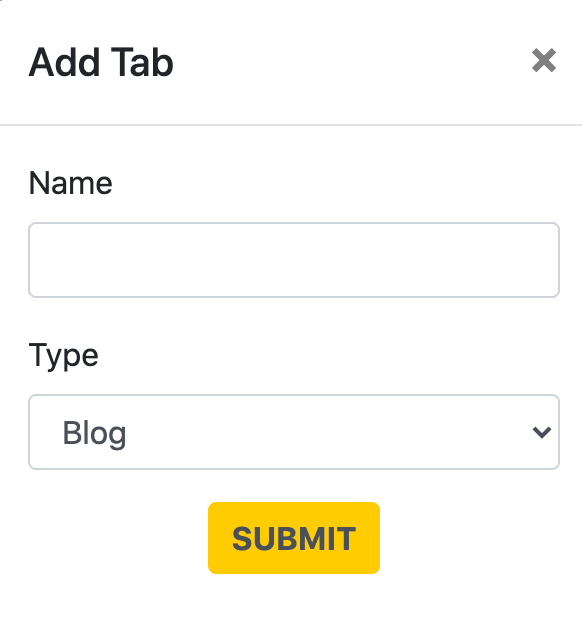
1. Add button
You can use this button if you need to add more tab to your profile. You should see a pop-up when you click the add button, then you can input name and type of the tab
With this feature, you can have multiple sections of blog/gallery/shop!
2. Gear button
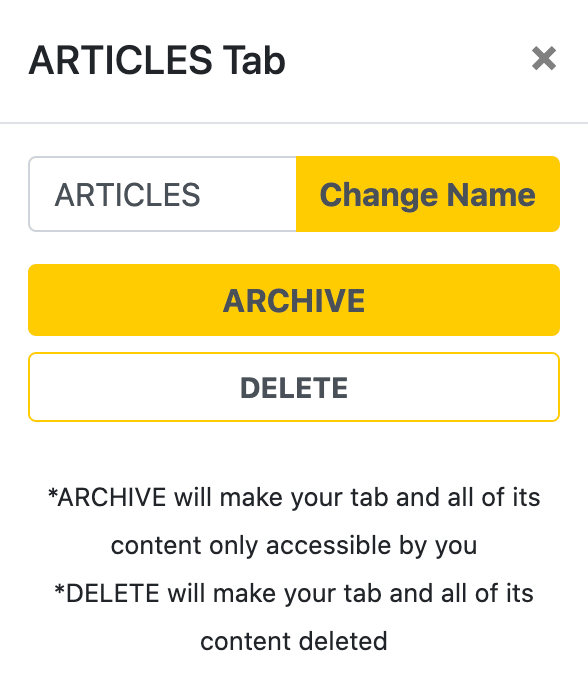
When you click the gear button at right of each tab, a pop-up will appears
You can do 3 things in this pop-up:
1. Change Name
You can easily change the name of a tab and click the Change Name button
2. Archive
If you want to hide your tab, click the Archive button, this will also make all of its contents inaccessible by public
3. Delete
If you want to delete your tab along with its contents, you can click the Delete button
That's all guys! Go ahead and try to customize your profile!




.png)
1.jpg)
1.jpg)


1.jpg)