Congratulations If you have got your first sale on Papelog!
The next step is you must process and ship the products to your buyer.
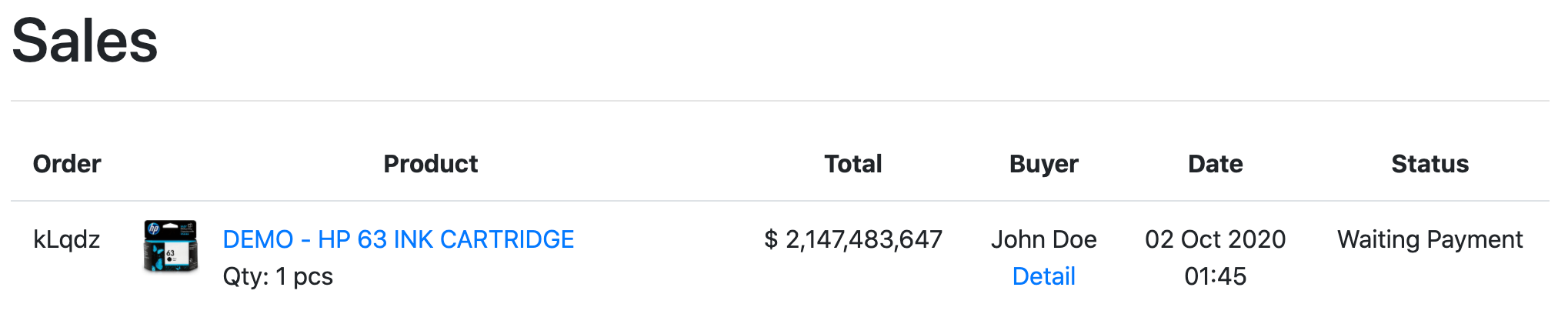
First of all, go to Sales page to view all incoming orders/sales in your shop.
Sales page
In this page, you can see all sales from your products. To see the order detail, click detail on each order.
Every order has a status column which indicate the current status of the order. To process the order, you need to understand every status and its meaning, so you can understand the process and do the right thing.
There are 9 different types of status that can happen in an order:
1. Waiting Payment
Waiting Payment means a user just make an order and haven't make a payment.
2. Payment Received
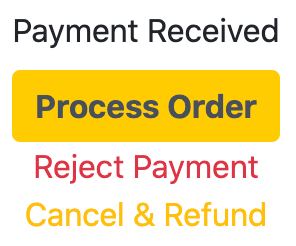
Payment Received means that the buyer has make a payment and waiting for your confirmation to process the order. Click on detail to see the detailed payment that has been made by the buyer.
You have 3 options to choose:
- Process Order: use this option if you have received the payment and ready to continue the order
- Reject Payment: use this option to tell the buyer that you haven't received the payment in 24 hours or more
- Cancel & Refund: use this option if have received the payment, but unable to continue the order
3. Waiting Shipment
After you choose Process Order, the status will change to Waiting Shipment which means that you need to ship/send the order as soon as possible to the buyer.
There will be a Shipped button which you can use to inform the buyer that the order has been shipped and change the status to be Shipped.
4. Shipped
This status means you have ship/send the order to the buyer and waiting to be received.
5. Done
Done means the buyer has received the product and mark the order as done.
6. Payment Failed
Payment Failed happens when you reject payment from the buyer (you haven't received the payment in 24 hours or more).
7. Cancelled by Buyer
During the Waiting Payment status, the buyer can choose to pay or cancel the order. If the buyer choose to cancel the order, you can see their reason at detail.
8. Cancelled - Need Refund
This status happens when you choose cancel & refund (you have received the payment but want to cancel the order because some reasons). During this status you must immediately do a full refund of buyer's payment.
9. Cancelled - Refunded
Cancelled - Refunded means you have refund the buyer's payment and the buyer has mark the order as refunded.
That's all guys, cheers!
If you have any questions about processing your sales, feel free to leave a comment below!


.png)
1.jpg)
1.jpg)

1.jpg)
1.jpg)